Learn how to request a connection for an asset in HD360 with only a few steps
Go to hd360.hastingsdeering.com.au
1. Introduction
Learn how to connect an asset in HD360. Once an asset is connected, you will be able to see its hour meter, location, fault code occurrences and critical fault alerts if enabled.
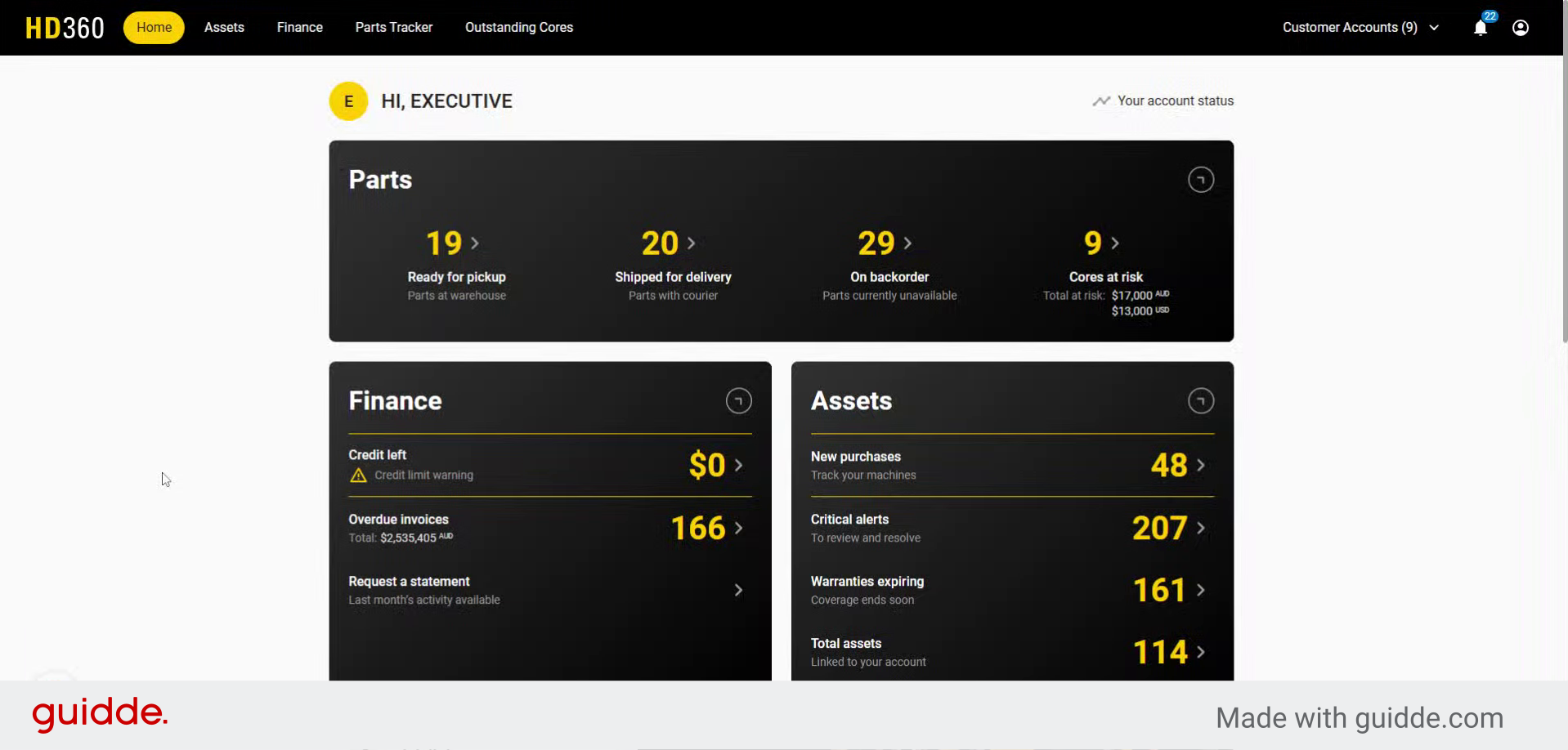
2. Navigate to the "Assets" section
Navigate to the "Assets" section
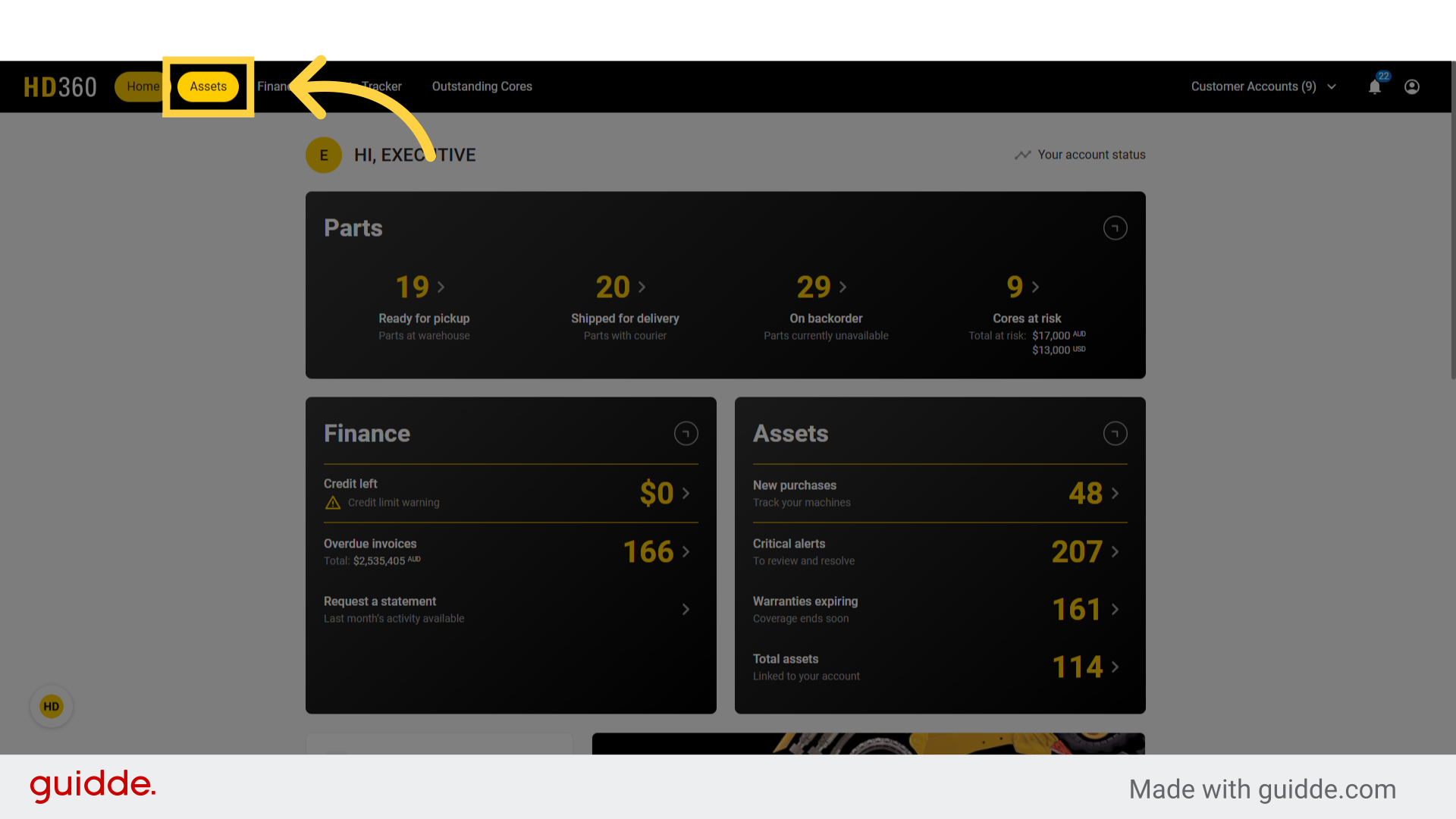
3. Use the filters to find non-connected assets
Locate and click on the "Not connected" filter
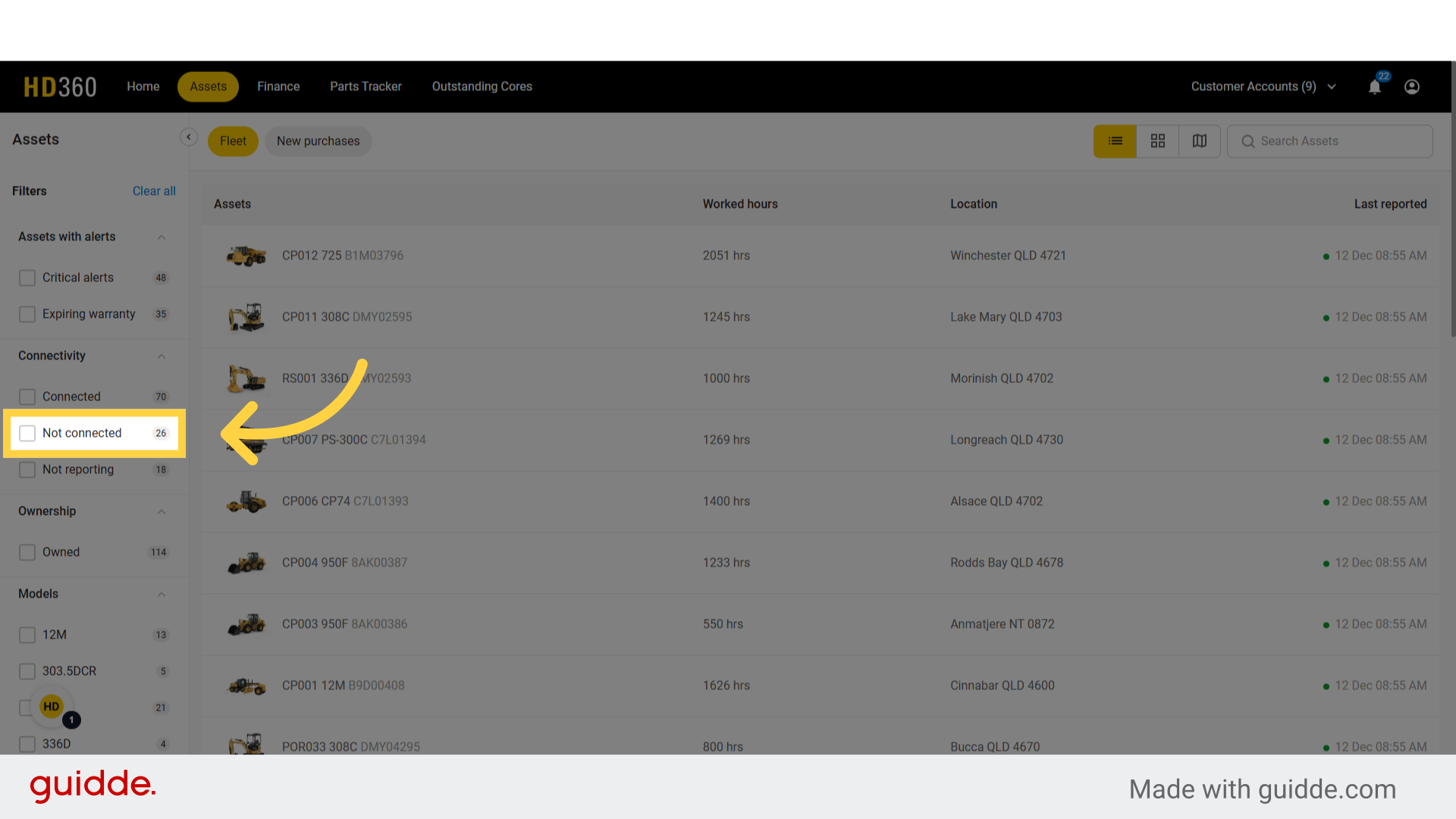
4. Click a non-connected asset
Select an asset which is not connected, you can see that it isn't connected by either filtering or in the asset list, it will say "Not connected"
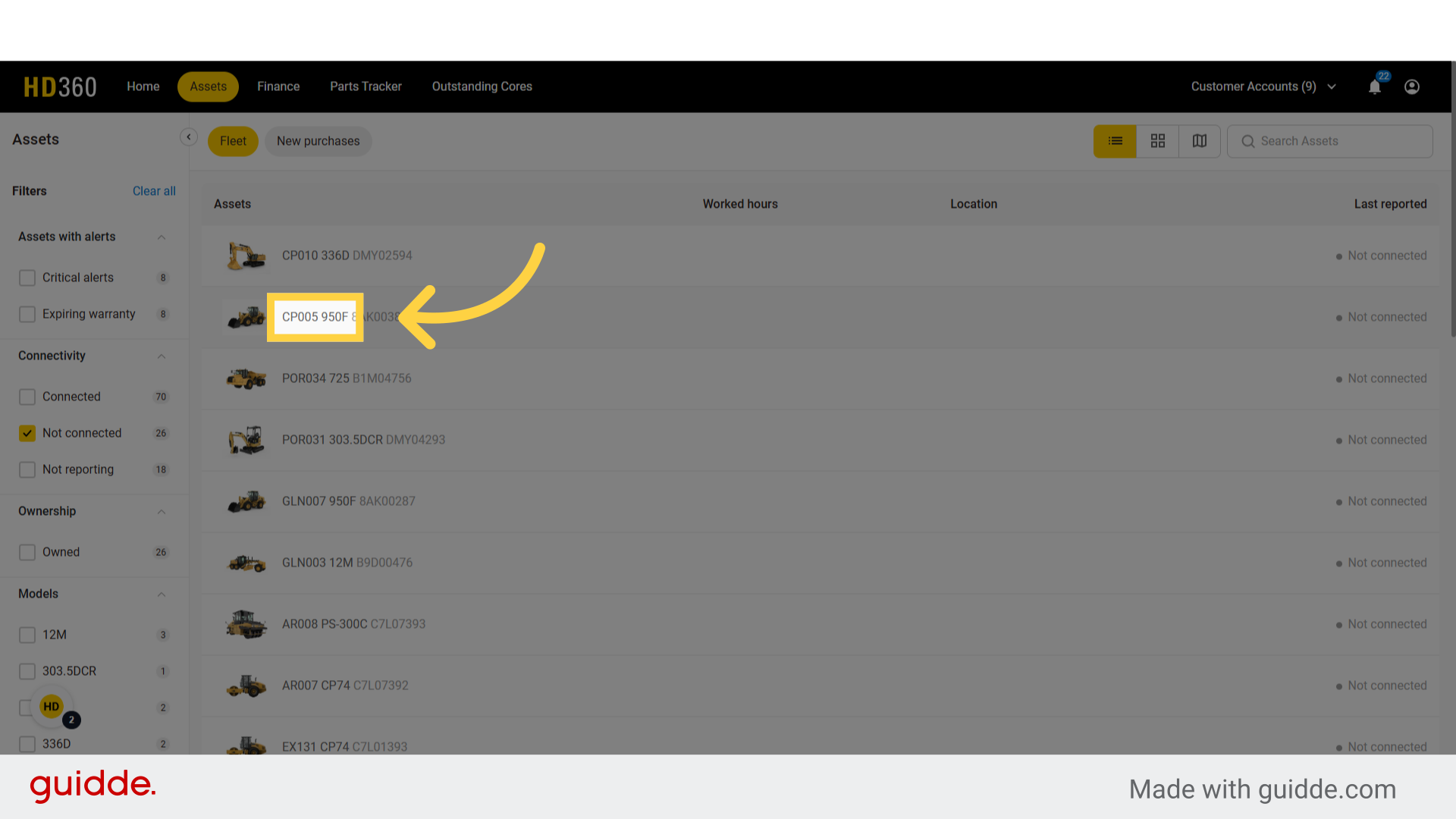
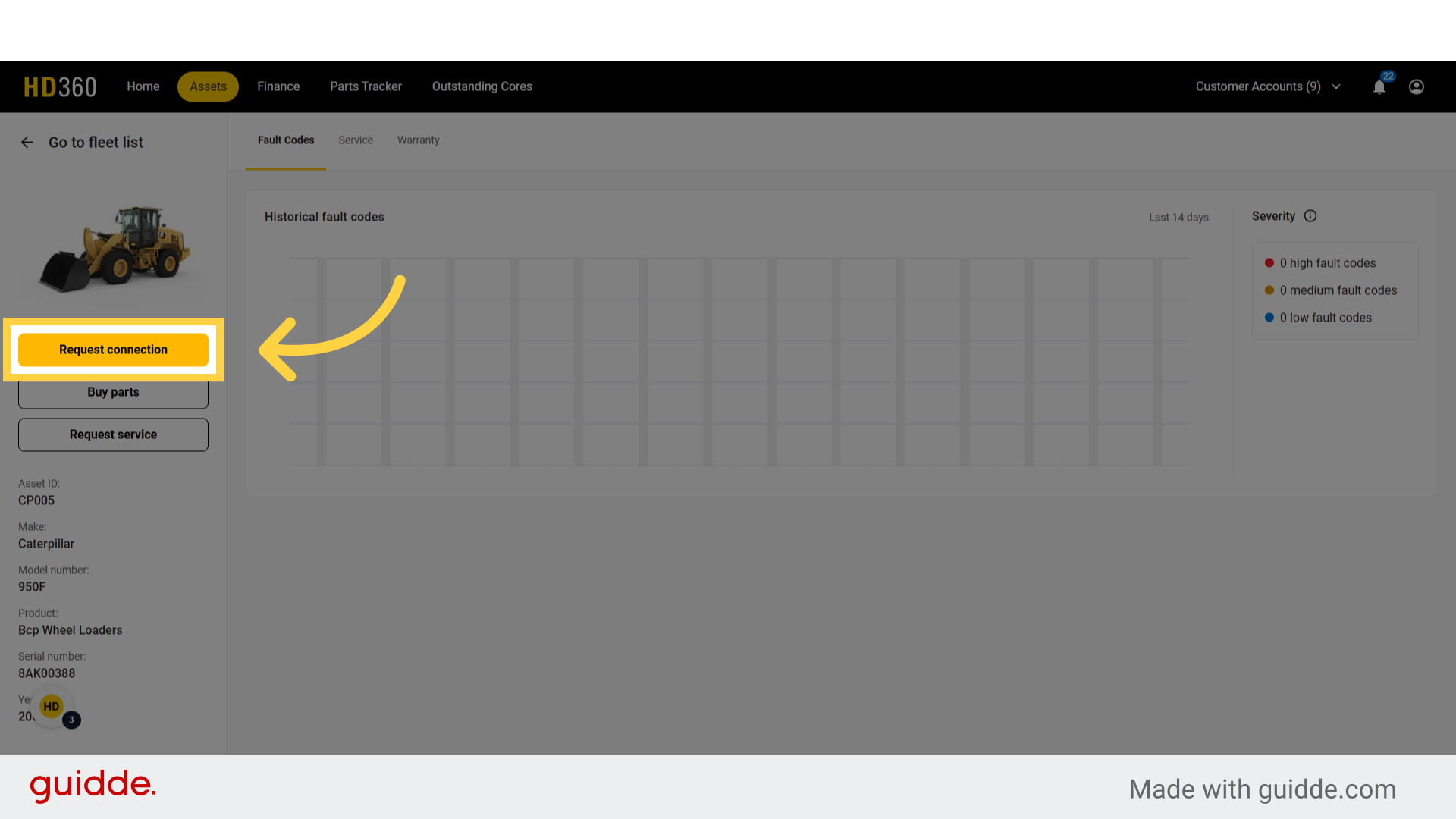
5. Click "Request connection"
Initiate the connection request
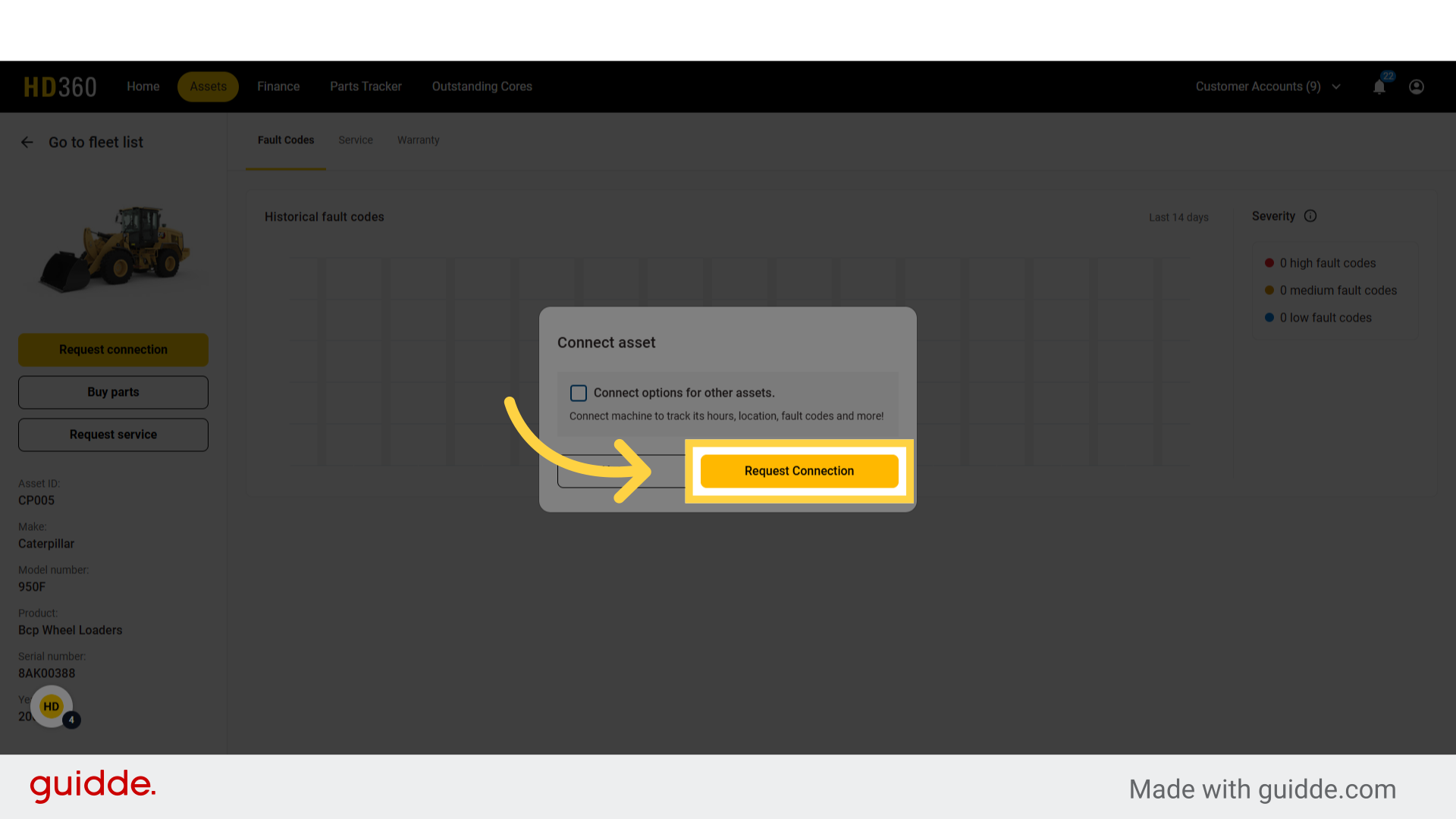
6. Confirm the connection request
Once you click the request connection button in the asset details page, a modal will appear. You have the choice to also see options for other non connected assets as well. Submit the connection request
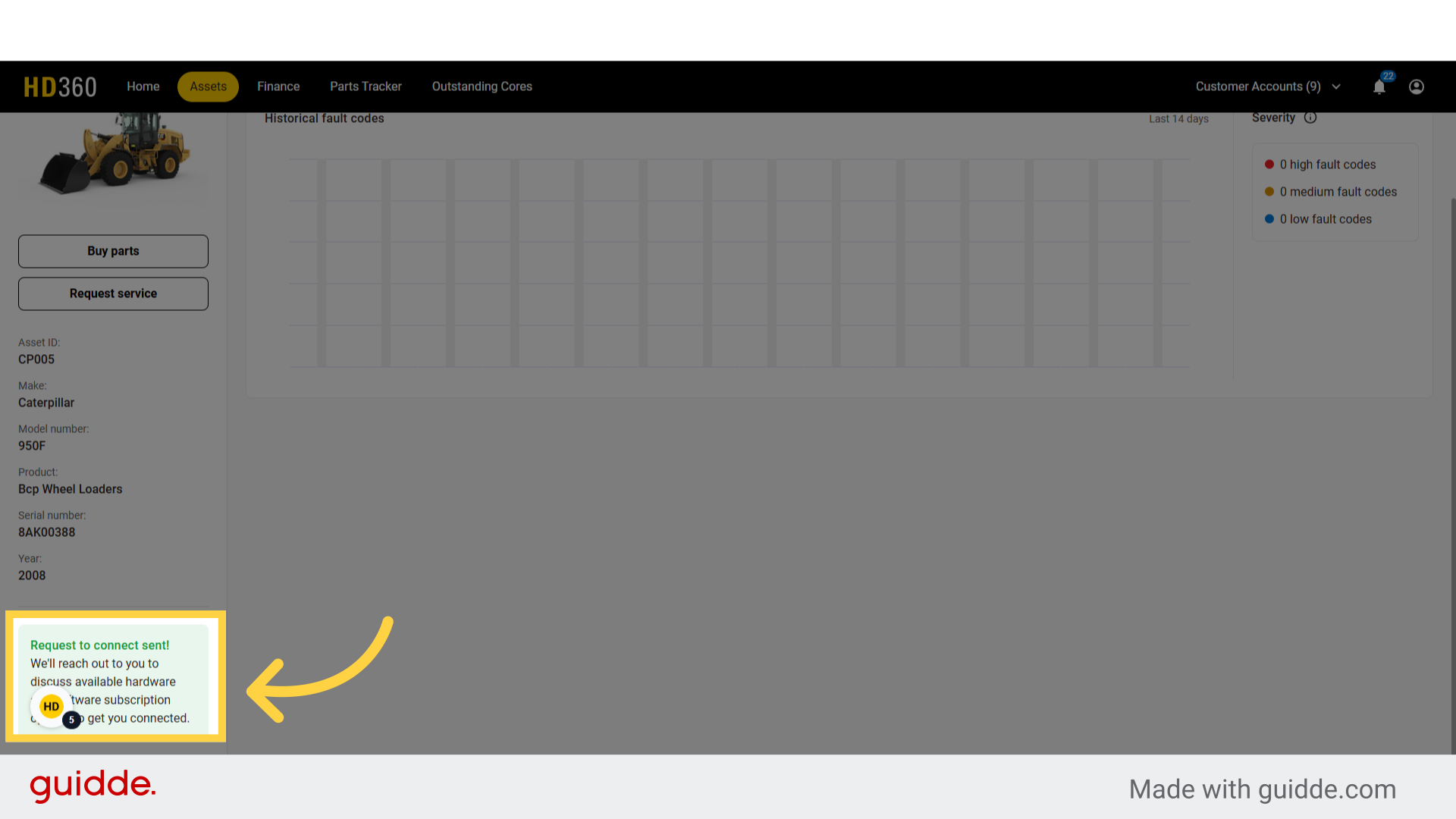
7. After you have requested a connection
Once you have requested the connection of one or more assets, the Technology Support team will reach out within 2 business days to help you get connected
This guide covers navigating to assets, selecting a specific asset, and submitting a connection request in HD360.
Comments
Article is closed for comments.